> ## Documentation Index
> Fetch the complete documentation index at: https://docs.cantae.app/llms.txt
> Use this file to discover all available pages before exploring further.

# Player

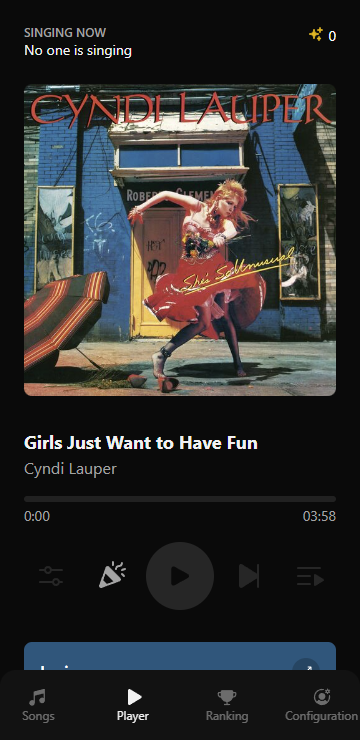
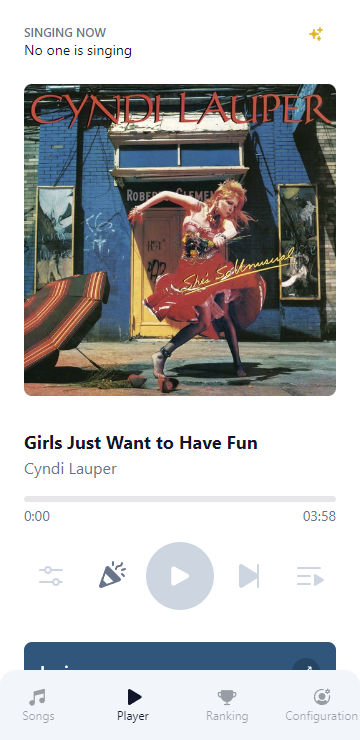
In this tab, you can control the volume of the songs, view the lyrics in real time, see queue list and send emoji reactions to the [karaoke screen](/documentation/getting-started/pages/lyrics).

<Warning>
  Playing or pausing a song, adjusting the volume, and removing songs from the queue can only be done if you are the singer for the song.
</Warning>

<Frame caption="Player tab">
  <img className="block border border-black/5 rounded-md dark:border-white/5 dark:hidden" src="https://mintcdn.com/canta/7A60e9occDdAQ3FL/assets/images/webapp-player-light.png?fit=max&auto=format&n=7A60e9occDdAQ3FL&q=85&s=699ab6df9ed6c868c1f91125677f4af7" width="360" height="740" data-path="assets/images/webapp-player-light.png" />

  <img className="hidden border border-black/5 rounded-md dark:border-white/5 dark:block" src="https://mintcdn.com/canta/7A60e9occDdAQ3FL/assets/images/webapp-player-dark.png?fit=max&auto=format&n=7A60e9occDdAQ3FL&q=85&s=e24d8177129182a2ed9b02c130c462ee" width="360" height="740" data-path="assets/images/webapp-player-dark.png" />
</Frame>

<Steps>
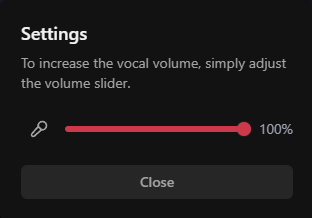
  <Step title="Adjusting the volume">
    You can adjust the volume of the song by dragging the volume slider to the desired level
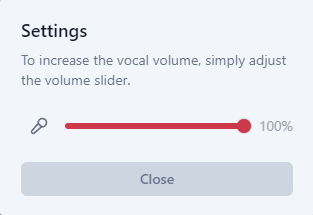
    <Frame caption="Adjusting the vocals volume">
      <img className="block border border-black/5 rounded-md dark:border-white/5 dark:hidden" src="https://mintcdn.com/canta/7A60e9occDdAQ3FL/assets/images/webapp-volume-light.png?fit=max&auto=format&n=7A60e9occDdAQ3FL&q=85&s=f2e6872b1fb482f0d9a4cd99775b8432" width="313" height="215" data-path="assets/images/webapp-volume-light.png" />

      <img className="hidden border border-black/5 rounded-md dark:border-white/5 dark:block" src="https://mintcdn.com/canta/7A60e9occDdAQ3FL/assets/images/webapp-volume-dark.png?fit=max&auto=format&n=7A60e9occDdAQ3FL&q=85&s=9646bfe69e3344d5826aeb78168838f7" width="312" height="218" data-path="assets/images/webapp-volume-dark.png" />
    </Frame>
  </Step>

  <Step title="Send emoji reactions">
    Click on the emoji icon to send emoji reactions to the [karaoke screen](/documentation/getting-started/pages/lyrics).
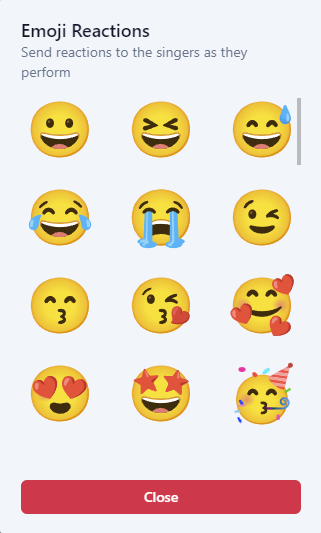
    <Frame caption="More actions">
      <img className="block border border-black/5 rounded-md dark:border-white/5 dark:hidden" src="https://mintcdn.com/canta/7A60e9occDdAQ3FL/assets/images/webapp-emoji-light.png?fit=max&auto=format&n=7A60e9occDdAQ3FL&q=85&s=f45c013a5beaea243e97477a3258e00a" width="321" height="533" data-path="assets/images/webapp-emoji-light.png" />

      <img className="hidden border border-black/5 rounded-md dark:border-white/5 dark:block" src="https://mintcdn.com/canta/7A60e9occDdAQ3FL/assets/images/webapp-emoji-dark.png?fit=max&auto=format&n=7A60e9occDdAQ3FL&q=85&s=cbc9e03b394c653566bda57ea6017a6e" width="320" height="534" data-path="assets/images/webapp-emoji-dark.png" />
    </Frame>
  </Step>

  <Step title="Playing or pausing">
    You can play or pause the song by clicking on the play button.
  </Step>

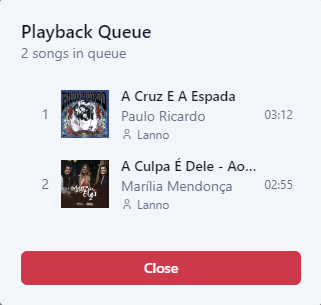
  <Step title="Queue">
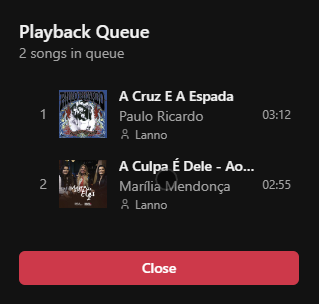
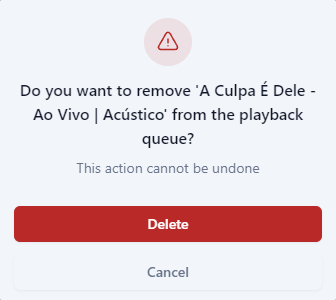
    You can view the list of songs in the queue and remove your song by clicking on it.
    <CardGroup cols={2}>
      <Frame caption="Queue list">
        <img className="block border border-black/5 rounded-md dark:border-white/5 dark:hidden" src="https://mintcdn.com/canta/7A60e9occDdAQ3FL/assets/images/webapp-queue-light.png?fit=max&auto=format&n=7A60e9occDdAQ3FL&q=85&s=4c570c6e7fd32aaa6b6e2da9fbee59ff" width="321" height="305" data-path="assets/images/webapp-queue-light.png" />

        <img className="hidden border border-black/5 rounded-md dark:border-white/5 dark:block" src="https://mintcdn.com/canta/7A60e9occDdAQ3FL/assets/images/webapp-queue-dark.png?fit=max&auto=format&n=7A60e9occDdAQ3FL&q=85&s=bfce2d6a9e783f97fff090452af0a54f" width="319" height="304" data-path="assets/images/webapp-queue-dark.png" />
      </Frame>

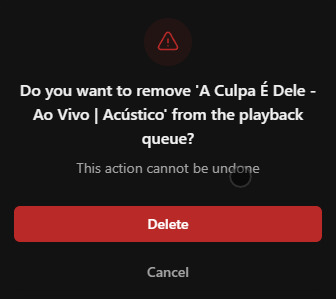
      <Frame caption="Remove song from queue">
        <img className="block border border-black/5 rounded-md dark:border-white/5 dark:hidden" src="https://mintcdn.com/canta/7A60e9occDdAQ3FL/assets/images/webapp-queue-dialog-light.png?fit=max&auto=format&n=7A60e9occDdAQ3FL&q=85&s=01784d1980479502ea2c5b407909d969" width="336" height="300" data-path="assets/images/webapp-queue-dialog-light.png" />

        <img className="hidden border border-black/5 rounded-md dark:border-white/5 dark:block" src="https://mintcdn.com/canta/7A60e9occDdAQ3FL/assets/images/webapp-queue-dialog-dark.png?fit=max&auto=format&n=7A60e9occDdAQ3FL&q=85&s=4ec2e2b9a3bfb2cad7596a7e6ffdeefd" width="336" height="299" data-path="assets/images/webapp-queue-dialog-dark.png" />
      </Frame>
    </CardGroup>
  </Step>

  <Step title="Lyrics">
    You can view the lyrics of the song in real time clicking on expanded button.
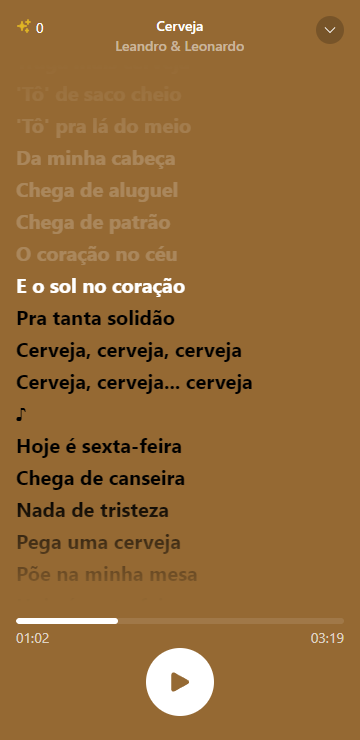
    <Frame caption="Lyrics">
      <img className="border border-black/5 rounded-md dark:border-white/5" src="https://mintcdn.com/canta/7A60e9occDdAQ3FL/assets/images/webapp-lyrics.png?fit=max&auto=format&n=7A60e9occDdAQ3FL&q=85&s=77cb32c1fa18077211bfcb2338941bbd" width="360" height="740" data-path="assets/images/webapp-lyrics.png" />
    </Frame>
  </Step>
</Steps>