> ## Documentation Index
> Fetch the complete documentation index at: https://docs.cantae.app/llms.txt
> Use this file to discover all available pages before exploring further.
# Songs
> All songs in one place
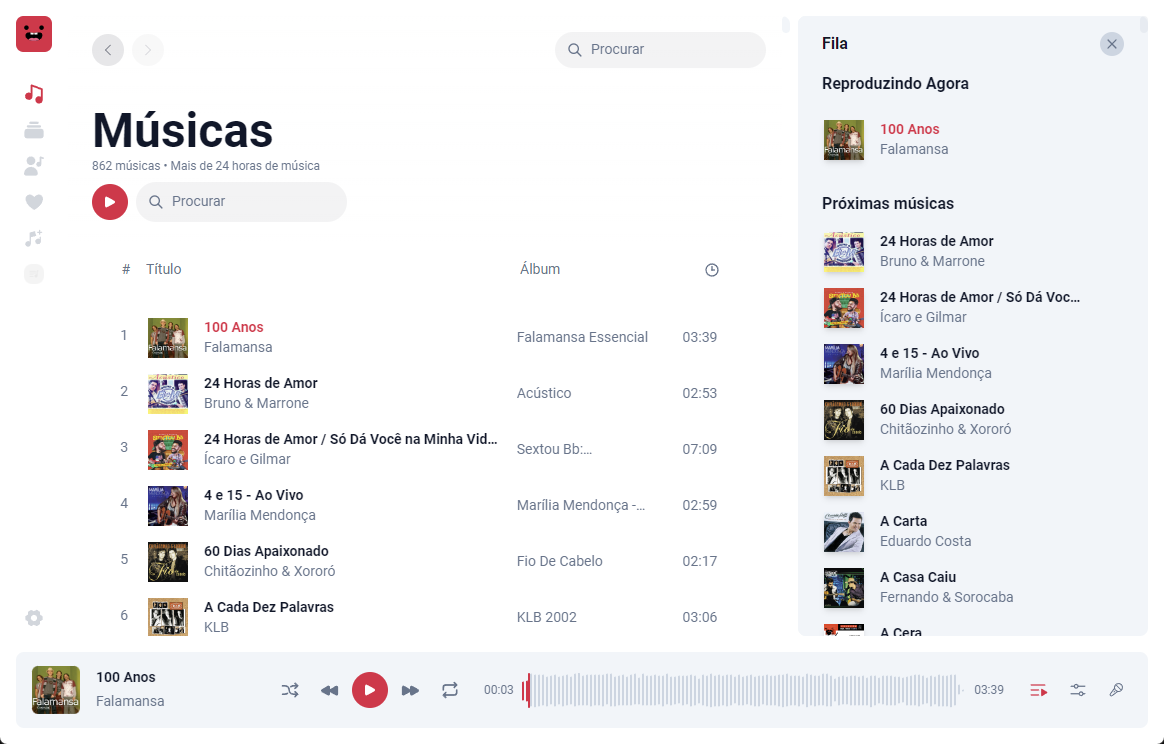
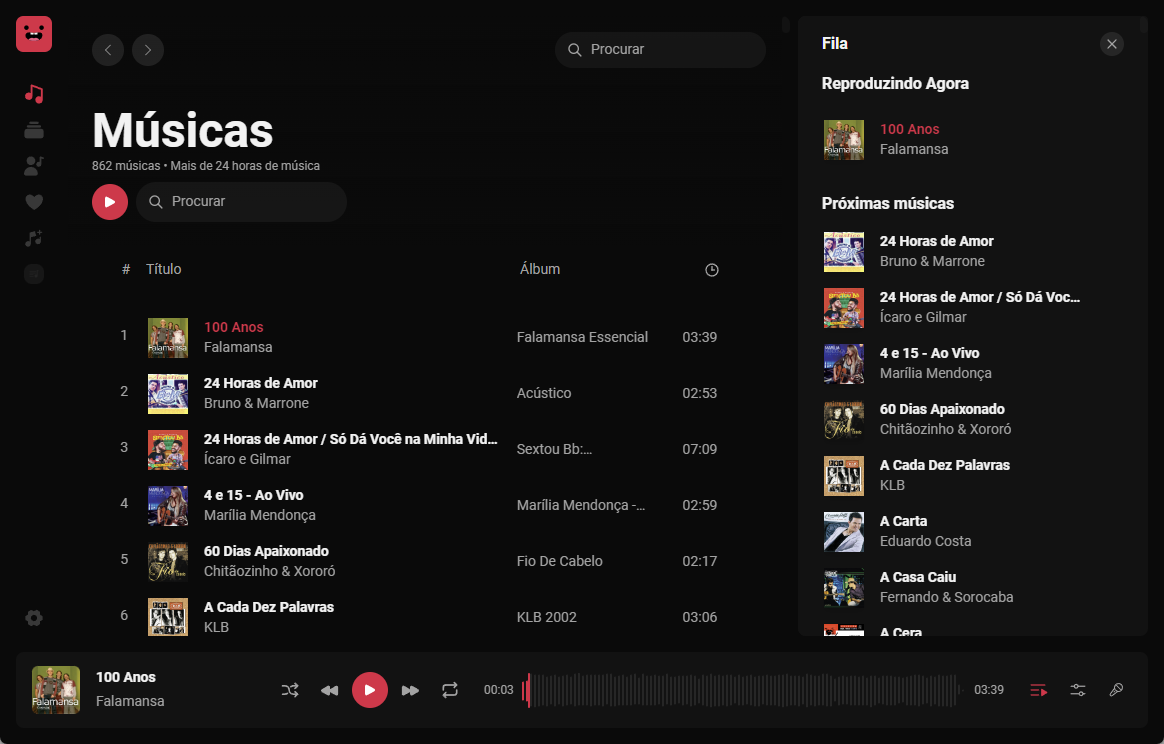
In this page, you can find all the songs available in the application. You can search for a specific song, filter and sort by name, artist or album.
If you want to see more about an [Artist](/documentation/getting-started/pages/artist) or [Album](/documentation/getting-started/pages/album), you can click on the respective link and see all the songs related to it.
## How to add songs
There are two ways to add songs to the application:
Click on button and select the directory where the songs are located.
Navigate to [Settings](/documentation/getting-started/pages/settings) -> click on the tab Music Directories and on button
After adding directories, the application will scan and add the songs to the database. This process may take some time depending on the number of songs.
## What formats are supported?
The application supports the following formats:
* MP3,
* MP4,
* M4A,
* WAV,
* AAC,
* OPUS,
* OGG,
* WMA,
* FLAC.
## How should the playback and vocals files be named?
The application uses the following naming convention to identify the playback and vocals files:
* Playback: `song_name - (Instrumental).extension`,
* Vocals: `song_name - (Vocals).extension`.
* Midi: `song_name.mid`.
* Example: `Earth, Wind & Fire - September - (Instrumental).mp3`.
The name should end with the type (instrumental) or (vocals) so that the player can correctly identify the type of audio.
## How to play a song?
To play a song, click on the button to play all songs or on the play button ► next to the album cover. The song will start playing at the bottom of the page.
## More actions
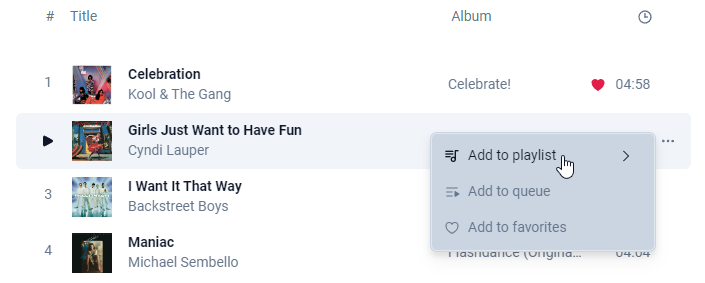
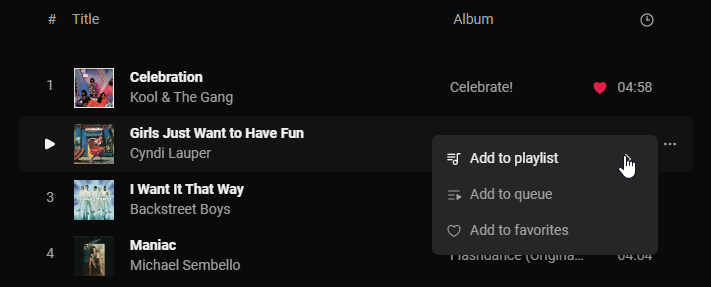
You can perform the following actions on a song:
* Add to queue,
* Add to playlist,
* Add to favorites,
 ## How to add songs
There are two ways to add songs to the application:
## How to add songs
There are two ways to add songs to the application:
 You can perform the following actions on a song:
* Add to queue,
* Add to playlist,
* Add to favorites,
You can perform the following actions on a song:
* Add to queue,
* Add to playlist,
* Add to favorites,