> ## Documentation Index
> Fetch the complete documentation index at: https://docs.cantae.app/llms.txt
> Use this file to discover all available pages before exploring further.

# Settings

> Customize app appearance, music directories, and player settings

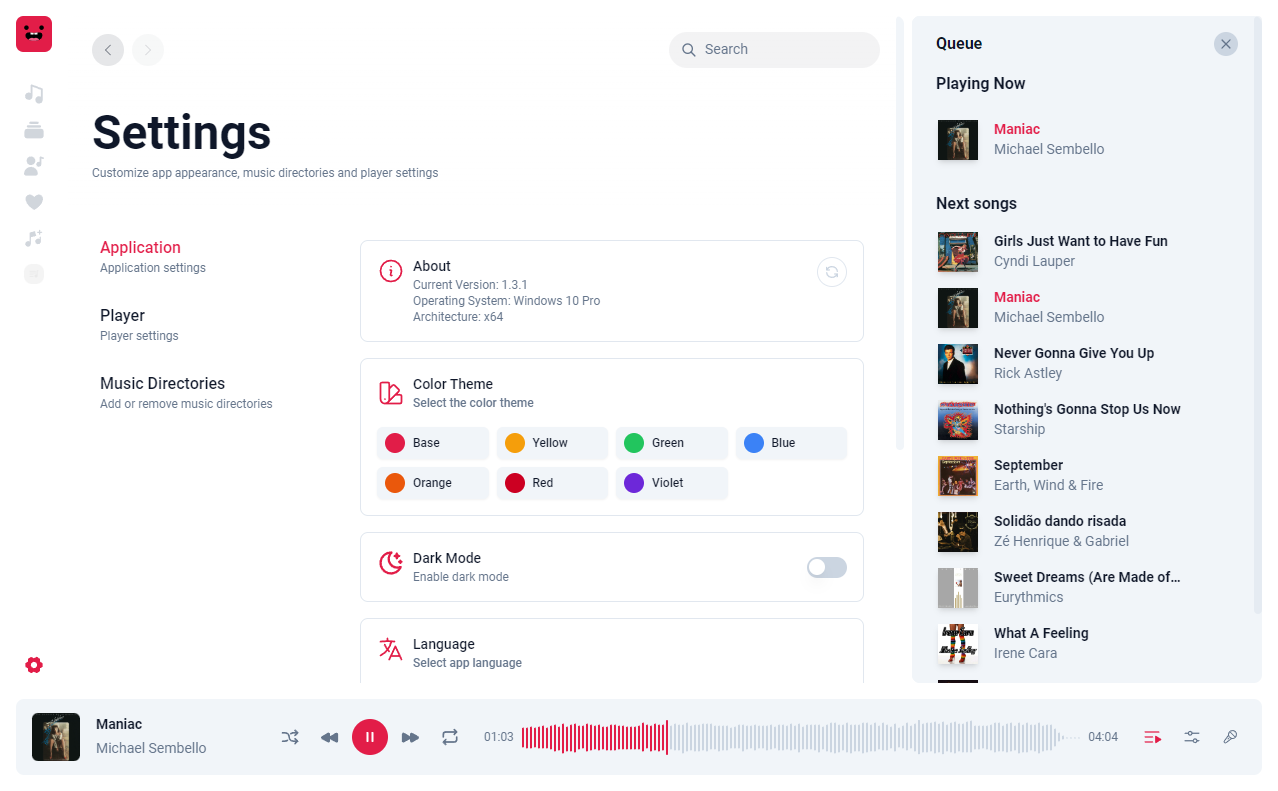
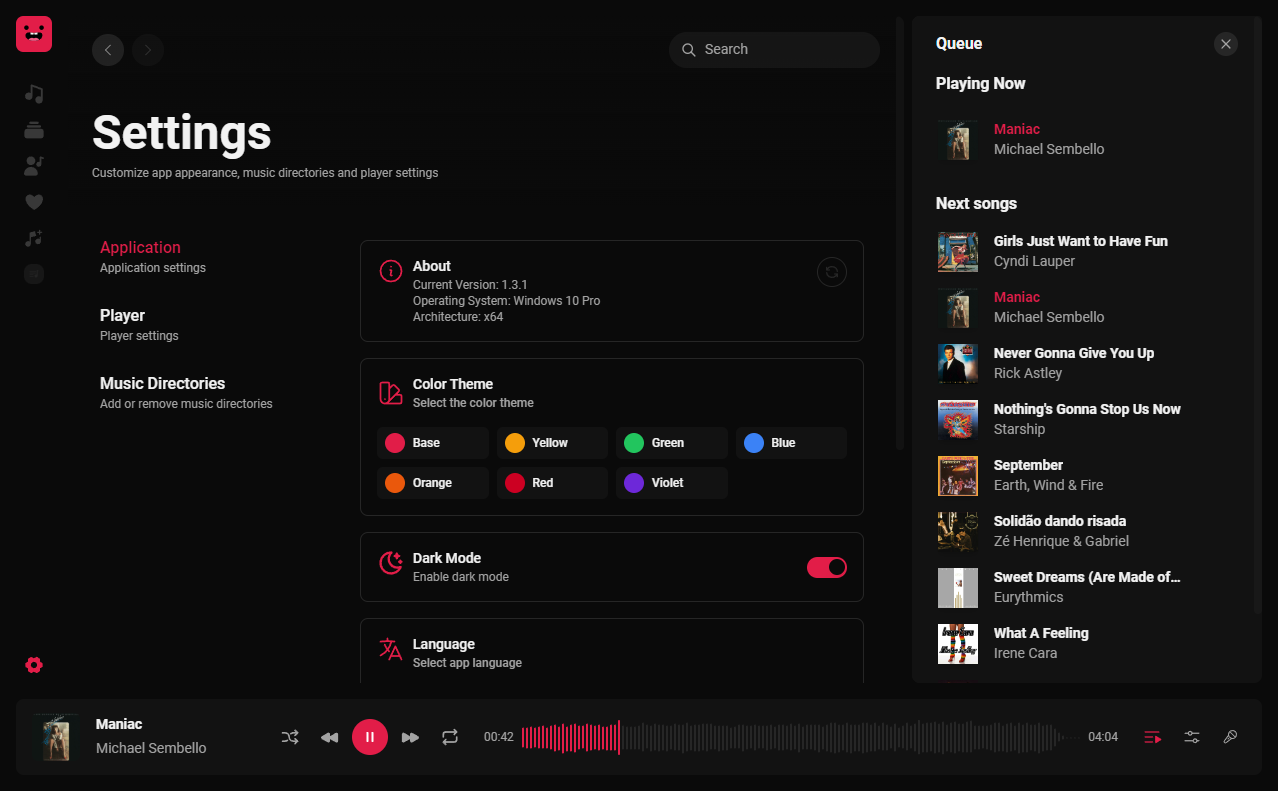
Settings page is divided into three sections: **Application**, **Player**, and **Music Directories**.

<Frame caption="Settings page">
  <img className="block border border-black/5 rounded-md dark:border-white/5 dark:hidden" src="https://mintcdn.com/canta/7A60e9occDdAQ3FL/assets/images/settings-light.png?fit=max&auto=format&n=7A60e9occDdAQ3FL&q=85&s=884a467f5602726a2ded875059a451c5" width="1278" height="791" data-path="assets/images/settings-light.png" />

  <img className="hidden border border-black/5 rounded-md dark:border-white/5 dark:block" src="https://mintcdn.com/canta/C5S1j4kpUEOg9-Sx/assets/images/settings-dark.png?fit=max&auto=format&n=C5S1j4kpUEOg9-Sx&q=85&s=3457fa951e0e3cbeaaff8c8383eb3ed0" width="1278" height="791" data-path="assets/images/settings-dark.png" />
</Frame>

<Tabs>
  <Tab title="Application">
    <Steps>
      <Step iconType="light" icon="circle-info" title="About">
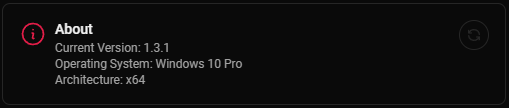
        In the "About" section, you can find information about the software version, operating system, and architecture. Click on the refresh button to check for updates.

        <Frame>
          <img className="block border border-black/5 rounded-md dark:border-white/5 dark:hidden" src="https://mintcdn.com/canta/C5S1j4kpUEOg9-Sx/assets/images/settings-about-light.png?fit=max&auto=format&n=C5S1j4kpUEOg9-Sx&q=85&s=4143392e061bcc74d75268e616394204" width="508" height="105" data-path="assets/images/settings-about-light.png" />

          <img className="hidden border border-black/5 rounded-md dark:border-white/5 dark:block" src="https://mintcdn.com/canta/C5S1j4kpUEOg9-Sx/assets/images/settings-about-dark.png?fit=max&auto=format&n=C5S1j4kpUEOg9-Sx&q=85&s=a20dece3fc4ff556d4f7fd7b7b3b1e3a" width="509" height="108" data-path="assets/images/settings-about-dark.png" />
        </Frame>
      </Step>

      <Step iconType="light" icon="brush" title="Color Theme">
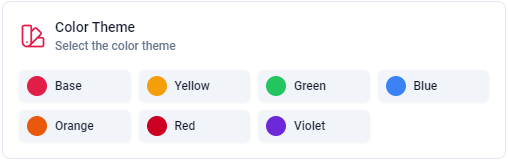
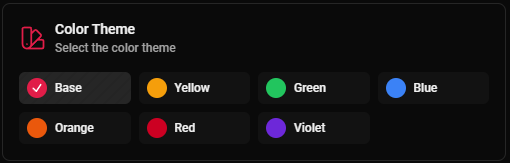
        Choose between seven primary color themes: Base, Yellow, Green, Blue, Orange, Red, and Violet.

        <Frame>
          <img className="block border border-black/5 rounded-md dark:border-white/5 dark:hidden" src="https://mintcdn.com/canta/C5S1j4kpUEOg9-Sx/assets/images/settings-color-light.png?fit=max&auto=format&n=C5S1j4kpUEOg9-Sx&q=85&s=cc72a6f12597be62476c6678fed981fd" width="508" height="161" data-path="assets/images/settings-color-light.png" />

          <img className="hidden border border-black/5 rounded-md dark:border-white/5 dark:block" src="https://mintcdn.com/canta/C5S1j4kpUEOg9-Sx/assets/images/settings-color-dark.png?fit=max&auto=format&n=C5S1j4kpUEOg9-Sx&q=85&s=b0881a64c31e10252f772759ef181c1a" width="510" height="163" data-path="assets/images/settings-color-dark.png" />
        </Frame>
      </Step>

      <Step iconType="light" icon="moon" title="Dark Mode">
        Enable or disable dark mode.

        <Frame>
          <img className="block border border-black/5 rounded-md dark:border-white/5 dark:hidden" src="https://mintcdn.com/canta/C5S1j4kpUEOg9-Sx/assets/images/settings-darkmode-light.png?fit=max&auto=format&n=C5S1j4kpUEOg9-Sx&q=85&s=09fbb0bc519f73da05abeacfb944c1e8" width="509" height="72" data-path="assets/images/settings-darkmode-light.png" />

          <img className="hidden border border-black/5 rounded-md dark:border-white/5 dark:block" src="https://mintcdn.com/canta/C5S1j4kpUEOg9-Sx/assets/images/settings-darkmode-dark.png?fit=max&auto=format&n=C5S1j4kpUEOg9-Sx&q=85&s=9ba0e3ea3b021b482a37d4315d2ec104" width="508" height="74" data-path="assets/images/settings-darkmode-dark.png" />
        </Frame>
      </Step>

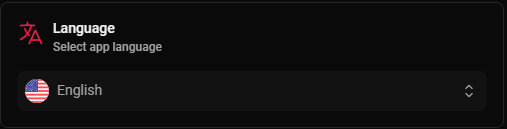
      <Step iconType="light" icon="language" title="Language">
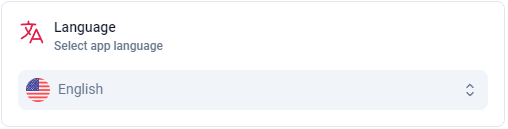
        Change the system language, which is available in four languages: English, Portuguese, Spanish, and Japanese.

        <Frame>
          <img className="block border border-black/5 rounded-md dark:border-white/5 dark:hidden" src="https://mintcdn.com/canta/7A60e9occDdAQ3FL/assets/images/settings-language-light.png?fit=max&auto=format&n=7A60e9occDdAQ3FL&q=85&s=5731a23e0b20266f3a7427e0ba1d81e4" width="508" height="129" data-path="assets/images/settings-language-light.png" />

          <img className="hidden border border-black/5 rounded-md dark:border-white/5 dark:block" src="https://mintcdn.com/canta/7A60e9occDdAQ3FL/assets/images/settings-language-dark.png?fit=max&auto=format&n=7A60e9occDdAQ3FL&q=85&s=87d24af2c3b35549336cf3030a692622" width="507" height="129" data-path="assets/images/settings-language-dark.png" />
        </Frame>
      </Step>

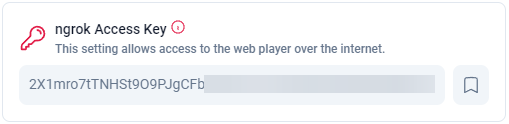
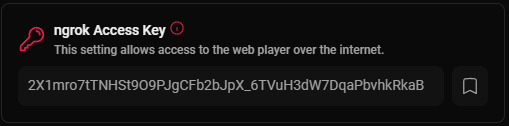
      <Step iconType="light" icon="wifi" title="Ngrok Server">
        If you want to access the music Webapp from anywhere via the internet, you need to set up an Ngrok Access Key. To obtain an Ngrok Access Key, you need to create an account on the [Ngrok website](https://ngrok.com/). Click on the save button on the right to apply the changes and restart the application.

        <Frame>
          <img className="block border border-black/5 rounded-md dark:border-white/5 dark:hidden" src="https://mintcdn.com/canta/7A60e9occDdAQ3FL/assets/images/settings-ngrok-light.png?fit=max&auto=format&n=7A60e9occDdAQ3FL&q=85&s=c57b55bea1bc9df34fcc2a445277d0d5" width="509" height="124" data-path="assets/images/settings-ngrok-light.png" />

          <img className="hidden border border-black/5 rounded-md dark:border-white/5 dark:block" src="https://mintcdn.com/canta/7A60e9occDdAQ3FL/assets/images/settings-ngrok-dark.png?fit=max&auto=format&n=7A60e9occDdAQ3FL&q=85&s=f0646ffbc7bafe7db557e101a797311c" width="509" height="126" data-path="assets/images/settings-ngrok-dark.png" />
        </Frame>
      </Step>

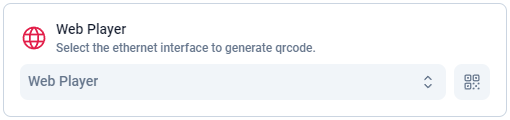
      <Step iconType="light" icon="mobile-button" title="Web player access">
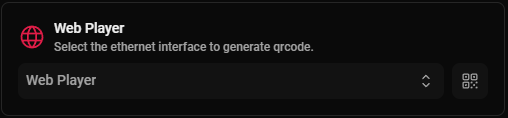
        The Web player address is the URL that you can use to access the music Webapp from your smartphone, tablet, or any other device with a web browser. After selecting the network interface, a QR code will be generated with the address to access the Webapp. Click on the QR code button to open the QR code image.

        <Info>The QR code image will be displayed on [Lyrics](/documentation/getting-started/pages/lyrics) page for singers</Info>

        <Frame>
          <img className="block border border-black/5 rounded-md dark:border-white/5 dark:hidden" src="https://mintcdn.com/canta/7A60e9occDdAQ3FL/assets/images/settings-webplayer-light.png?fit=max&auto=format&n=7A60e9occDdAQ3FL&q=85&s=6f406acd2a59376d07ff470ee1289f2b" width="510" height="120" data-path="assets/images/settings-webplayer-light.png" />

          <img className="hidden border border-black/5 rounded-md dark:border-white/5 dark:block" src="https://mintcdn.com/canta/7A60e9occDdAQ3FL/assets/images/settings-webplayer-dark.png?fit=max&auto=format&n=7A60e9occDdAQ3FL&q=85&s=cfa44746373126e0b150bdca6f53cefa" width="508" height="118" data-path="assets/images/settings-webplayer-dark.png" />
        </Frame>
      </Step>
    </Steps>
  </Tab>

  <Tab title="Player">
    <Steps>
      <Step iconType="light" icon="circle-info" title="Save Lyrics">
        When song doesn't have lyrics, the app will search for the lyrics and save it in the song file. You can enable or disable this feature.

        <Frame>
          <img className="block border border-black/5 rounded-md dark:border-white/5 dark:hidden" src="https://mintcdn.com/canta/7A60e9occDdAQ3FL/assets/images/settings-save-lyrics-light.png?fit=max&auto=format&n=7A60e9occDdAQ3FL&q=85&s=a92d9a62063c61b0066fd914813e319c" width="516" height="75" data-path="assets/images/settings-save-lyrics-light.png" />

          <img className="hidden border border-black/5 rounded-md dark:border-white/5 dark:block" src="https://mintcdn.com/canta/7A60e9occDdAQ3FL/assets/images/settings-save-lyrics-dark.png?fit=max&auto=format&n=7A60e9occDdAQ3FL&q=85&s=38acce1700c7219f86b74010f197bf49" width="512" height="76" data-path="assets/images/settings-save-lyrics-dark.png" />
        </Frame>
      </Step>

      <Step iconType="light" icon="brush" title="Show QR code">
        Enable or disable the QR code display on the player screen. The QR code is used to access the music Webapp from your smartphone, tablet, or any other device with a web browser.

        <Frame>
          <img className="block border border-black/5 rounded-md dark:border-white/5 dark:hidden" src="https://mintcdn.com/canta/7A60e9occDdAQ3FL/assets/images/settings-show-qrcode-light.png?fit=max&auto=format&n=7A60e9occDdAQ3FL&q=85&s=57aa85f631cefd67db9013665cca2b91" width="516" height="73" data-path="assets/images/settings-show-qrcode-light.png" />

          <img className="hidden border border-black/5 rounded-md dark:border-white/5 dark:block" src="https://mintcdn.com/canta/7A60e9occDdAQ3FL/assets/images/settings-show-qrcode-dark.png?fit=max&auto=format&n=7A60e9occDdAQ3FL&q=85&s=02ac57637728a17b9b504a9fbcb52f23" width="514" height="76" data-path="assets/images/settings-show-qrcode-dark.png" />
        </Frame>
      </Step>

      <Step iconType="light" icon="moon" title="Karaoke Mode">
        Enable or disable karaoke mode. In karaoke mode, autoplay is disabled, and the lyrics page will show 'waiting for the singer' and the score.

        <Frame>
          <img className="block border border-black/5 rounded-md dark:border-white/5 dark:hidden" src="https://mintcdn.com/canta/C5S1j4kpUEOg9-Sx/assets/images/settings-karaoke-light.png?fit=max&auto=format&n=C5S1j4kpUEOg9-Sx&q=85&s=babb695a1d68ebd5c512a4fb14eb3531" width="516" height="76" data-path="assets/images/settings-karaoke-light.png" />

          <img className="hidden border border-black/5 rounded-md dark:border-white/5 dark:block" src="https://mintcdn.com/canta/C5S1j4kpUEOg9-Sx/assets/images/settings-karaoke-dark.png?fit=max&auto=format&n=C5S1j4kpUEOg9-Sx&q=85&s=348c8c55fa8517cadb874b20afcb403d" width="514" height="75" data-path="assets/images/settings-karaoke-dark.png" />
        </Frame>
      </Step>

      <Step iconType="light" icon="moon" title="Enable Score">
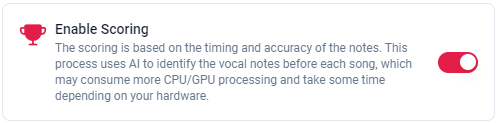
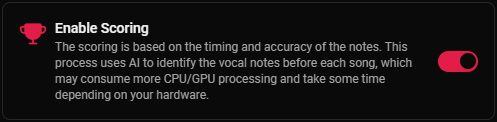
        The score is based on timing and note accuracy. This process uses AI to identify vocal notes before each song, which can consume more CPU/GPU processing and take some time depending on your hardware. A **.mid** file will be created in the music directory with the same name as the selected song. You can also use another [free tool](https://github.com/DamRsn/NeuralNote) to generate the **.mid** files.

        <Frame>
          <img className="block border border-black/5 rounded-md dark:border-white/5 dark:hidden" src="https://mintcdn.com/canta/7A60e9occDdAQ3FL/assets/images/settings-score-light.png?fit=max&auto=format&n=7A60e9occDdAQ3FL&q=85&s=aebeb1782aa63f914536307bbf1adc0f" width="497" height="123" data-path="assets/images/settings-score-light.png" />

          <img className="hidden border border-black/5 rounded-md dark:border-white/5 dark:block" src="https://mintcdn.com/canta/7A60e9occDdAQ3FL/assets/images/settings-score-dark.png?fit=max&auto=format&n=7A60e9occDdAQ3FL&q=85&s=f18604bccdf80c215afa6bf8e6317d32" width="497" height="122" data-path="assets/images/settings-score-dark.png" />
        </Frame>
      </Step>

      <Step iconType="light" icon="moon" title="Enable GPU">
        Enable GPU to accelerate scoring processing using graphic processing. This feature may not work correctly on all devices.

        <Frame>
          <img className="block border border-black/5 rounded-md dark:border-white/5 dark:hidden" src="https://mintcdn.com/canta/C5S1j4kpUEOg9-Sx/assets/images/settings-gpu-light.png?fit=max&auto=format&n=C5S1j4kpUEOg9-Sx&q=85&s=b68505813bfec2227df5647c57795d9d" width="497" height="90" data-path="assets/images/settings-gpu-light.png" />

          <img className="hidden border border-black/5 rounded-md dark:border-white/5 dark:block" src="https://mintcdn.com/canta/C5S1j4kpUEOg9-Sx/assets/images/settings-gpu-dark.png?fit=max&auto=format&n=C5S1j4kpUEOg9-Sx&q=85&s=fcd8d6970e4bc6eff143eaac014c1b48" width="497" height="91" data-path="assets/images/settings-gpu-dark.png" />
        </Frame>
      </Step>

      <Step iconType="light" icon="language" title="Queue Limit">
        Set the maximum number of songs in the queue by singer. The default value is 2.

        <Frame>
          <img className="block border border-black/5 rounded-md dark:border-white/5 dark:hidden" src="https://mintcdn.com/canta/7A60e9occDdAQ3FL/assets/images/settings-queue-limit-light.png?fit=max&auto=format&n=7A60e9occDdAQ3FL&q=85&s=cf16b09cf0fd6d402e1930b7b676afc8" width="514" height="92" data-path="assets/images/settings-queue-limit-light.png" />

          <img className="hidden border border-black/5 rounded-md dark:border-white/5 dark:block" src="https://mintcdn.com/canta/7A60e9occDdAQ3FL/assets/images/settings-queue-limit-dark.png?fit=max&auto=format&n=7A60e9occDdAQ3FL&q=85&s=86fe4b317aa1505382ee01ac395c5323" width="515" height="93" data-path="assets/images/settings-queue-limit-dark.png" />
        </Frame>
      </Step>

      <Step iconType="light" icon="mic" title="Input device">
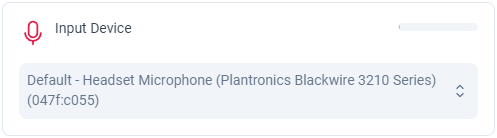
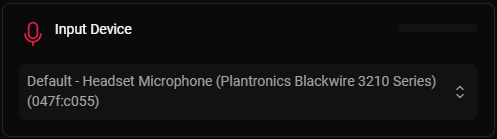
        Select the input device to use for the microphone. It will be used to calculate the score in real-time. If you are using an external microphone, it should be connected to the computer where the Cantaê application is installed.

        <Frame>
          <img className="block border border-black/5 rounded-md dark:border-white/5 dark:hidden" src="https://mintcdn.com/canta/7A60e9occDdAQ3FL/assets/images/settings-mic-light.png?fit=max&auto=format&n=7A60e9occDdAQ3FL&q=85&s=3b1e0bf123f4452d06c9ecee01f40896" width="497" height="138" data-path="assets/images/settings-mic-light.png" />

          <img className="hidden border border-black/5 rounded-md dark:border-white/5 dark:block" src="https://mintcdn.com/canta/7A60e9occDdAQ3FL/assets/images/settings-mic-dark.png?fit=max&auto=format&n=7A60e9occDdAQ3FL&q=85&s=f7483d942416d0acdc06ef59f292d0cb" width="497" height="139" data-path="assets/images/settings-mic-dark.png" />
        </Frame>
      </Step>
    </Steps>
  </Tab>

  <Tab title="Music Directories">
    In the "Music Directories" section, you can add, remove, or reindex songs. Click on <button className="bg-primary rounded-md text-white px-2 py-1 text-sm">Add Directory</button> button to select the directory where the songs are located. Click on <button className="bg-gray-500 rounded-md text-white px-2 py-1 text-sm">Reindex</button> button to reindex the songs in all directories. and on Trash icon button <Icon icon="trash-can" iconType="solid" /> to remove the directory.

    <Frame>
      <img className="block border border-black/5 rounded-md dark:border-white/5 dark:hidden" src="https://mintcdn.com/canta/C5S1j4kpUEOg9-Sx/assets/images/settings-directories-light.png?fit=max&auto=format&n=C5S1j4kpUEOg9-Sx&q=85&s=e1ca7133ac5362ab889aab61e132703d" width="530" height="97" data-path="assets/images/settings-directories-light.png" />

      <img className="hidden border border-black/5 rounded-md dark:border-white/5 dark:block" src="https://mintcdn.com/canta/C5S1j4kpUEOg9-Sx/assets/images/settings-directories-dark.png?fit=max&auto=format&n=C5S1j4kpUEOg9-Sx&q=85&s=93a65cd039af5dbcc2fb38403686abbb" width="533" height="115" data-path="assets/images/settings-directories-dark.png" />
    </Frame>
  </Tab>
</Tabs>