> ## Documentation Index
> Fetch the complete documentation index at: https://docs.cantae.app/llms.txt
> Use this file to discover all available pages before exploring further.

# Queue

> Add songs to the queue

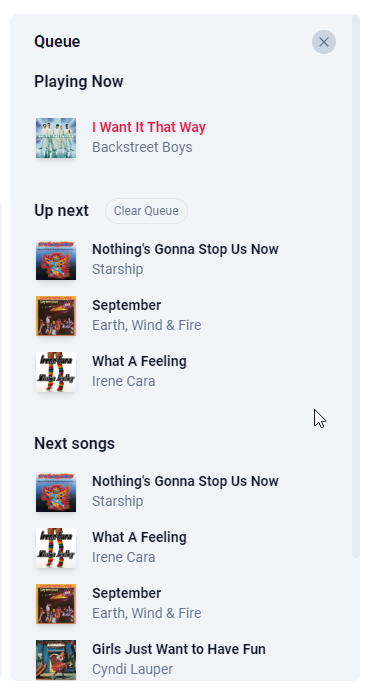
## How queue works?

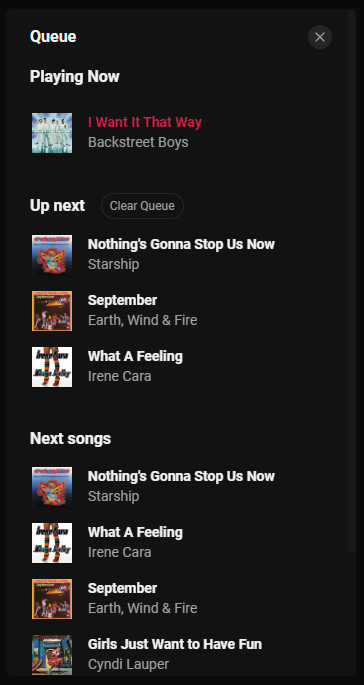
Queue is a list of songs that you can add to play next. You can add or remove songs to the queue by clicking <span className="text-gray-800 dark:text-white">'•••'</span> more actions button and clicking on <span className="text-gray-800 dark:text-white">'Add to Queue'</span> or <span className="text-gray-800 dark:text-white">'Remove from Queue'</span> button.

<Frame caption="Queue list">
  <img className="block border border-black/5 rounded-md dark:border-white/5 dark:hidden" src="https://mintcdn.com/canta/C5S1j4kpUEOg9-Sx/assets/images/queue-light.png?fit=max&auto=format&n=C5S1j4kpUEOg9-Sx&q=85&s=1b86d82b85af4be4afd439765db88dc1" width="372" height="694" data-path="assets/images/queue-light.png" />

  <img className="hidden border border-black/5 rounded-md dark:border-white/5 dark:block" src="https://mintcdn.com/canta/C5S1j4kpUEOg9-Sx/assets/images/queue-dark.png?fit=max&auto=format&n=C5S1j4kpUEOg9-Sx&q=85&s=8e67b41261bd7e68b29604c4912ff363" width="364" height="685" data-path="assets/images/queue-dark.png" />
</Frame>

<Steps>
  <Step title="Sorting">
    It is possible to sort a song by dragging and dropping it to the desired position in the queue list.
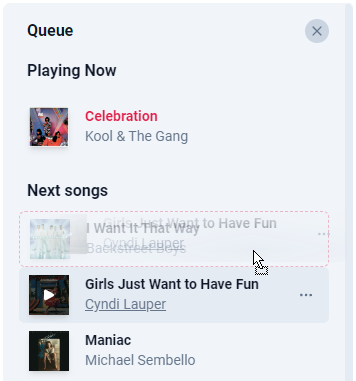
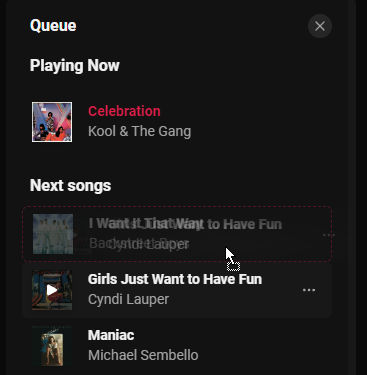
    <Frame caption="Sorting song on queue">
      <img className="block border border-black/5 rounded-md dark:border-white/5 dark:hidden" src="https://mintcdn.com/canta/7A60e9occDdAQ3FL/assets/images/sort-queue-light.png?fit=max&auto=format&n=7A60e9occDdAQ3FL&q=85&s=758502b78239b2b1ea06daa6e67b5374" width="356" height="381" data-path="assets/images/sort-queue-light.png" />

      <img className="hidden border border-black/5 rounded-md dark:border-white/5 dark:block" src="https://mintcdn.com/canta/7A60e9occDdAQ3FL/assets/images/sort-queue-dark.png?fit=max&auto=format&n=7A60e9occDdAQ3FL&q=85&s=8594178050047610247f279b63046569" width="367" height="375" data-path="assets/images/sort-queue-dark.png" />
    </Frame>
  </Step>

  <Step title="Remove Songs">
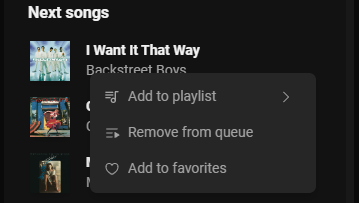
    Click on <span className="text-gray-800 dark:text-white">'•••'</span> more actions button to remove songs from the queue
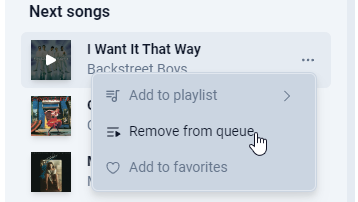
    <Frame caption="More actions">
      <img className="block border border-black/5 rounded-md dark:border-white/5 dark:hidden" src="https://mintcdn.com/canta/C5S1j4kpUEOg9-Sx/assets/images/remove-song-queue-light.png?fit=max&auto=format&n=C5S1j4kpUEOg9-Sx&q=85&s=e5ea2a8d3942abb1249784b62e1e7af3" width="358" height="202" data-path="assets/images/remove-song-queue-light.png" />

      <img className="hidden border border-black/5 rounded-md dark:border-white/5 dark:block" src="https://mintcdn.com/canta/C5S1j4kpUEOg9-Sx/assets/images/remove-song-queue-dark.png?fit=max&auto=format&n=C5S1j4kpUEOg9-Sx&q=85&s=ecc7da28dbe3af0056f77991f811f6bd" width="359" height="203" data-path="assets/images/remove-song-queue-dark.png" />
    </Frame>
  </Step>

  <Step title="Clear Up Next List">
    Click on <span className="text-gray-800 dark:text-white">'Clear Queue'</span> button to remove all songs from the Up Next list
  </Step>
</Steps>